Auto-Search: Find and Save Matched Jobs
Automatically find and save matched jobs across 5 supported platforms.
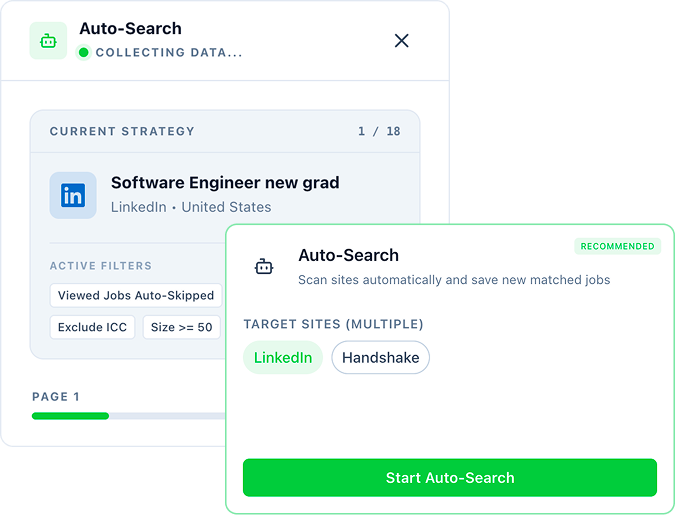
What Auto-Search does for you
Set Up Your Search Strategy
Set up job titles, filters, and preferences to target the right opportunities.
Apply Smart Filters (Job Screener)
Apply Smart Filters to control match rate, sponsorship, and other requirements.
Select Platforms & Start Auto-Search
Choose platforms and run Auto-Search to scan and save matched jobs automatically.
View Matched Jobs
Access your results in Account → Auto-Search to review matched jobs, match rate, keywords, and interview insights.
Supported Platforms
Handshake
FAQ
Questions about Auto-Search
What does FrogHire.ai Auto-Search do?
Auto-Search uses your saved search strategy, filters, and match settings to scan supported job platforms and save matched jobs to your FrogHire.ai account.
Which job platforms can Auto-Search use?
Auto-Search runs on supported job platforms selected in FrogHire.ai. After a search runs, matched jobs appear in your FrogHire.ai dashboard.
Can I control which jobs Auto-Search saves?
You can set job titles, filters, match-rate requirements, sponsorship preferences, and other search settings before you run Auto-Search.
Where do I review matched jobs?
Matched jobs appear in Account > Auto-Search. From there you can review the role, match rate, keywords, and related job details before deciding what to apply to.
Keep Exploring
Related Resources
Continue with focused help pages, practical tools, and deeper blog reads.
Explore Help
3Learn Guides
2From Blog
4- Why A Job Search Strategy Matters
A job search strategy is crucial because it helps you navigate the complex and competitive job market with purpose and direction. It increases your chances of finding the right job that aligns with your goals and skills. Download the FrogHire.ai extension and start creating your search strategy today!
- Applied to 100 Jobs and Got No Interviews? How to Audit Your Job Search
Applied to 100 jobs with no interviews? Audit role fit, resume versions, application sources, response stages, and follow-up gaps before sending the next batch.
- How to Job Search in the U.S. Without American Work Experience
Starting your job search in the U.S. before you have had any American work experience is daunting for most of us. If you are new into the U.S. work force, you may be worried that there’s more to it than just job skills -- but the truth is that you can still land interviews—even offers—without a U.S. resume. The key is strategy, confidence, and a few creative moves.
- Intern Series: Unpaid Internships And What You Need to Know
Before proceeding with any internship, make sure you talk to your designated school official (DSO) or international student advisor to discuss which authorization is right for your internship, and make sure you are aware of all the paperwork you must complete because this is essential for maintaining legal status in the United States. To search for your internship, download the FrogHire.ai extension as a way to make your job search easier and more efficient--this extension will not only help you filter jobs across all five major job sites, but can also point you towards employers who will employ nondomestic workers with CPT or OPT needs.